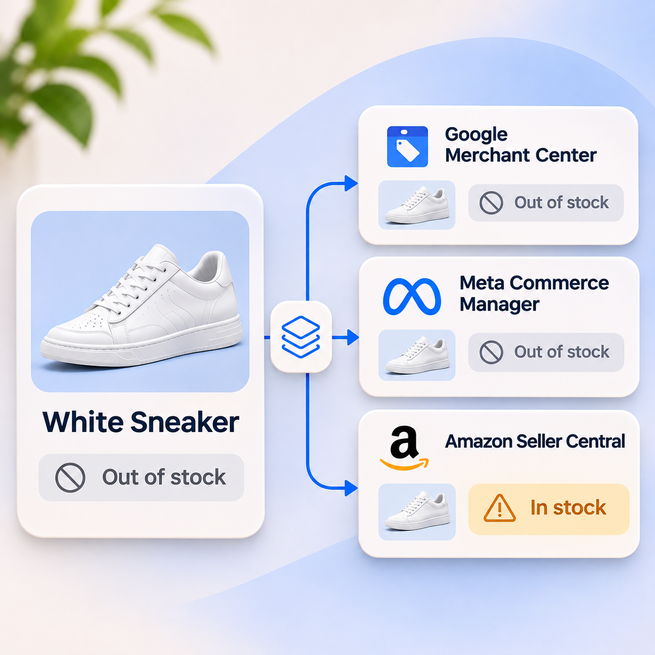



















































Sending the same product feed to Google, Meta, and Amazon isn’t a synchronization strategy. It’s a distribution chore. Feed synchronization is a compliance and data architecture strategy.
Your Google feed might refresh every four hours while Meta and Amazon follow different update schedules. Meanwhile, inventory changes, prices move, and products sell out.
Execution of a scheduled feed does not guarantee cross-platform data parity.
Multi-channel feed work comes down to keeping product data consistent without forcing every channel to use identical information. You need a reliable source of product data, rules that account for each platform’s requirements, and a way to catch discrepancies before they affect your listings or campaigns.
You sell apparel through Shopify, advertise on Google Shopping and Meta, and list products on Amazon.
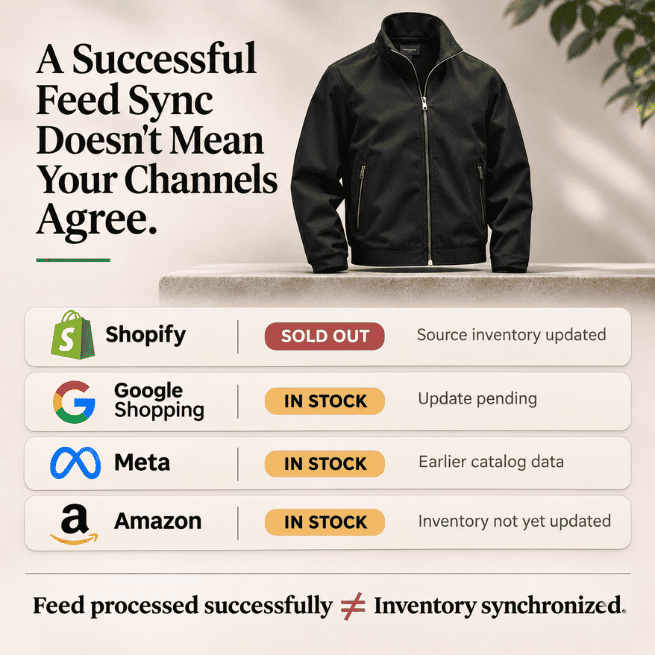
A popular jacket sells out on your website. Shopify reflects the change immediately, but Google won’t receive the next scheduled feed for another three hours. Meta is working from an earlier catalog update, and Amazon still shows inventory available.
Every integration might report a successful update. Nothing necessarily failed during processing.
But you’re still advertising a jacket you can’t fulfill. Worse, if you fulfill Amazon orders from the same stock, you could accept an order for inventory that’s already gone.
These platforms don’t share one inventory clock. And a successful feed upload doesn’t mean every destination has the latest product information.
When you’re troubleshooting, compare three timestamps:
The gaps show whether the delay starts at the source, in your feed workflow, or at the destination.
Google Merchant Center’s product status and data-source processing details can help you investigate availability issues. For Meta and Amazon, you’ll need to check the corresponding catalog or inventory records.
Google adds one more variable: its automations can overwrite availability using your landing page, and they’re on by default. Check the landing page and your Automations settings too, because the value in Merchant Center may not have come from your feed. Don’t treat automations as a safety net, though. Google says they may not work for products whose price or availability changes often, for example more than once a day. If it detects a mismatch on those products, it may disapprove them instead of updating them.
The important thing is to stop treating a successful upload as proof that your product data is current.
Your Google Shopping title and Amazon listing title don’t need to match. Your GTIN does.
Some attributes establish what the product is. Others determine how you present it on a particular platform.
Your SKU, verified GTIN, brand, and variant relationships need consistent handling. Titles, categories, and certain merchandising attributes may need different formatting or mappings depending on the destination.
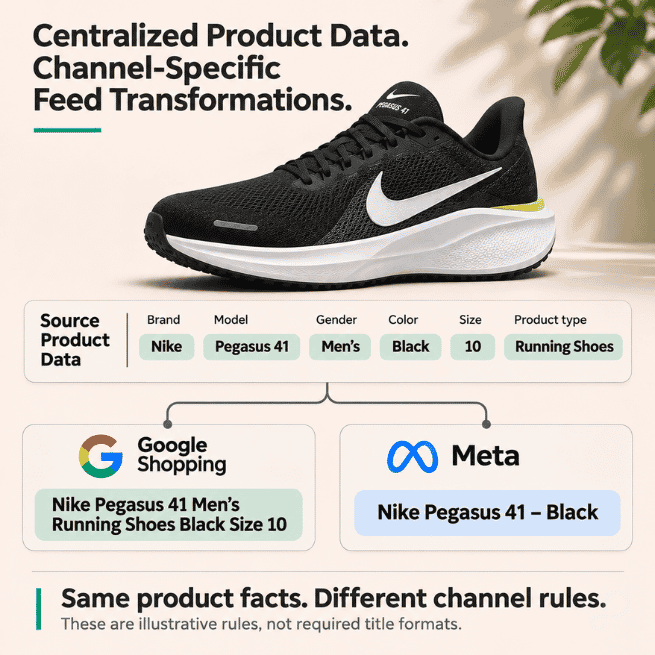
Take a running shoe with these source attributes:
For Google Shopping, you might build a title like:
Nike Pegasus 41 Men’s Running Shoes Black Size 10
For Meta, you might use:
Nike Pegasus 41 – Black
A Google-specific feed rule could look like this:
IF channel = Google
AND product_type = "Running Shoes"
THEN title =
brand + model + gender + product_type + color + size
For Meta:
IF channel = Meta
THEN title =
brand + model + color
These are illustrative rules, not required title formats. The right structure depends on the products, placement requirements, and what you want to test.
Data pollution occurs when channel-specific modifications overwrite centralized source attributes.
You don’t need separate master catalogs to avoid that.
With GoDataFeed, you can work from a centralized product import, normalize source attributes, and apply channel-specific mappings and rules to the feeds you distribute. Keep the product facts consistent. Handle channel differences in the feed logic.
Troubleshooting gets easier too. If a Google title looks wrong, you can inspect the Google transformation without changing how the product appears everywhere else.
A four-hour feed refresh might be fine for products with steady inventory. For a limited-release sneaker selling across Shopify and Amazon, it can be a liability.
If both channels draw from the same stock pool, a sale on one reduces what you can fulfill on the other. But the other channel won’t necessarily know about that sale until it receives the updated inventory.
Update frequency and inventory buffers both reduce that exposure.
Start by identifying products with high sales velocity, limited stock, or a history of overselling. Those products may need faster inventory updates than the rest of your catalog.
Depending on the destination and your integration, that could mean more frequent feed submissions or API-based inventory updates. Google’s documented scheduled fetches pull a file from an HTTPS or SFTP URL on a daily, weekly, or monthly schedule. Anything faster means pushing updates yourself, either by uploading files through SFTP or Google Cloud Storage, or by sending them through the Merchant API.
For high-velocity SKUs, a batch schedule is a liability. Google says partial updates through productInputs.patch are ideal for frequently changing data like price and availability, with processing that typically takes a few minutes. Let a stock change in your source trigger that update instead of waiting for the next run, and keep regular full submissions so all product data stays in sync. Feed rules are the fallback logic, not the primary engine.
You can also use feed rules to apply a safety-stock threshold. The rule has to change by channel, because each one handles availability differently. This pseudo-logic shows the decision, not any platform’s exact syntax:
IF channel = Google
AND sellable_quantity <= 3
AND inventory_velocity = "high"
THEN excluded_destination = "Shopping_ads"
IF channel = Amazon
AND fulfillment_method = "FBM"
AND inventory_velocity = "high"
THEN quantity = MAX(sellable_quantity - 3, 0)
In this example, you’re deliberately holding back the last three units to reduce overselling risk. The field names are illustrative, and inventory_velocity is something you calculate from your sales data, not a native platform attribute.
Don’t set Google availability to out_of_stock to create that buffer. If the product is still in stock on your landing page or at checkout, Google can disapprove it. Use excluded_destination instead, and add Free_listings if the item should leave free listings too. Excluded Shopping_ads products also drop out of the listing group selectors in Google Ads, so expect them to leave that segment until the rule releases them.
That drawback has a cost. Frequently dropping and re-adding SKUs to PMax listing groups forces the algorithmic bidding model back into a learning phase, which damages ROAS. Use a release threshold above the exclusion threshold so a SKU doesn’t bounce across the line every day.
For Meta, add a custom label to those items and filter them out of the relevant product sets.
The buffer is a tradeoff, not a universal best practice.
Set the threshold too high, and you suppress inventory you could have sold. Set it too low, and you risk accepting orders you can’t fulfill.
The right threshold depends on stock velocity, fulfillment capacity, and how many channels share the same inventory.
A feed refresh isn’t the same as a completed inventory update.
The destination still needs to receive and process the new data. If Google Merchant Center continues showing an item as available after your source marks it out of stock, check the submitted value, processing status, landing page, and Automations settings before assuming the problem is your refresh schedule.
Inventory discrepancies tend to get attention quickly because someone notices the mismatch or a customer places an order you can’t fulfill.
Identifier problems are harder to catch. The product is available, the catalog looks fine, and the ads may still run. But the data connecting those products to your advertising events can be wrong.
A platform migration changes how your product variants are identified. Your new Meta catalog uses SKU-based IDs, but your website’s Pixel or Conversions API events still send the old platform-generated identifiers.
Meta catalog id: SHOE-RED-09
Pixel content_ids: 482931
Both identifiers might refer to the same shoe in your internal systems. Meta doesn’t automatically know that.
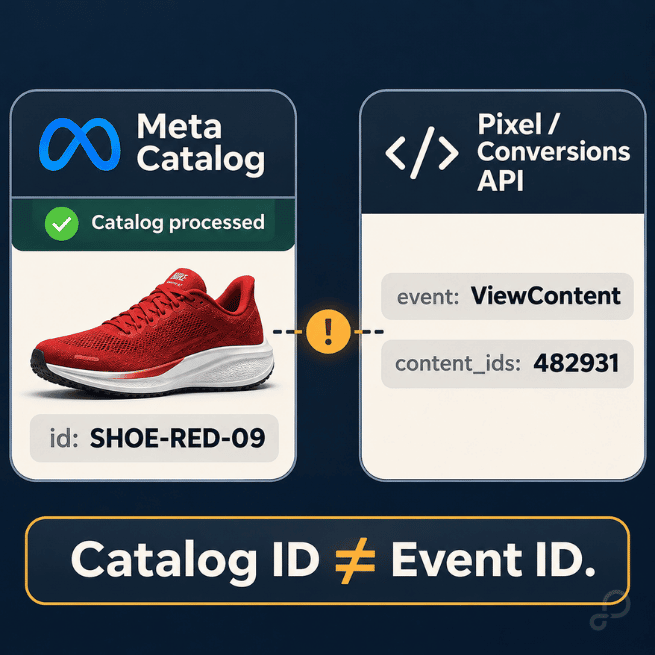
When event identifiers don’t match the relevant catalog items, Meta can have trouble connecting shopper behavior to the products needed for Advantage+ catalog ads.
And because the catalog itself may process without errors, the issue can go unnoticed.
The first place I’d check is the catalog match rate in Commerce Manager, which shows how many product IDs in your events match catalog items.
Then go to Meta Events Manager. Inspect a recent ViewContent event and compare its content_ids with the corresponding product identifiers in Commerce Manager.
Also check content_type, particularly if your tracking sends parent-product identifiers while your catalog uses variant-level IDs.
Then review the feed mapping.
Are you preserving the identifiers your tracking implementation expects? Did a recent migration add prefixes, change variant IDs, or replace product-level identifiers with SKUs?
GoDataFeed can help manage the feed-side mapping, but the tracking implementation needs to match. That means coordinating with whoever manages your Pixel or Conversions API setup.
The same migration can affect Google too. Google says not to change a product’s id once assigned, because that overwrites the product and its history. Review any ID changes across every channel before they go live.
Your catalog can look perfectly healthy while Advantage+ catalog ads lose useful product-level matching. That’s why catalog IDs and event IDs belong in the same QA process.
And once you’ve got identifiers and availability under control, there’s another question worth asking: does your feed carry the information your campaigns need?
You’re running Performance Max across a catalog with very different product margins.
Your $200 product with a 15% gross margin and your $200 product with a 55% gross margin aren’t equally valuable to the business.
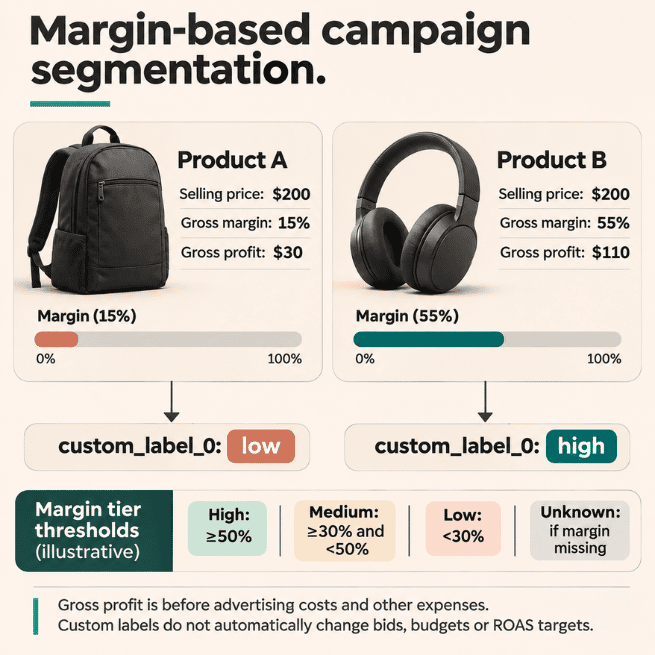
But if your feed doesn’t expose that distinction, you have no straightforward margin classification to use when organizing campaign inventory.
Merchant Center custom labels carry that distinction.
You can calculate a margin tier from your source data and map it to custom_label_0 in your Google feed.
For example:
IF gross_margin_pct is empty
THEN margin_tier = "unknown"
ELSE IF gross_margin_pct >= 50
THEN margin_tier = "high"
ELSE IF gross_margin_pct >= 30
THEN margin_tier = "medium"
ELSE margin_tier = "low"
Then map margin_tier to Google’s custom_label_0.
Now you have a consistent way to identify high-, medium-, and low-margin inventory, and to spot SKUs that are missing cost data.
In Google Ads, you can use custom labels to organize Shopping product groups or Performance Max listing groups. If the economics justify it, you can also use those classifications to build separate campaigns with different budgets or ROAS targets.
A custom label doesn’t change bids. You still have to use it in campaign structure, inventory selection, or reporting.
To make bidding respond to margin, calculate profit per order from your ERP’s COGS data and pass it as the conversion value. Google says value-based bidding can maximize sales revenue or profit margins, so your ROAS target now works on profit, often called POAS (Profit on Ad Spend). Reset the target when you switch, because profit values are smaller than revenue values. Google documents cost_of_goods_sold with cart data as gross profit reporting, so that attribute alone doesn’t change what bidding optimizes toward.
And with Performance Max, listing groups determine which products an asset group can serve. Budgets and ROAS targets operate at the campaign level, not independently for each asset group.
Meta handles segmentation differently. You can map the same underlying margin classification to one of Meta’s custom_label_0 through custom_label_4 fields and use product sets to organize inventory.
Google and Meta don’t need identical feed structures. Your underlying margin logic can still stay consistent.
Change a custom-label rule, and you might change which products your PMax campaign can advertise. That’s a campaign decision, even if the change happened inside your feed management tool.
A category mapping rule changes on Tuesday.
On Wednesday, your high-margin Google Shopping segment drops from 8,000 SKUs to 5,000.
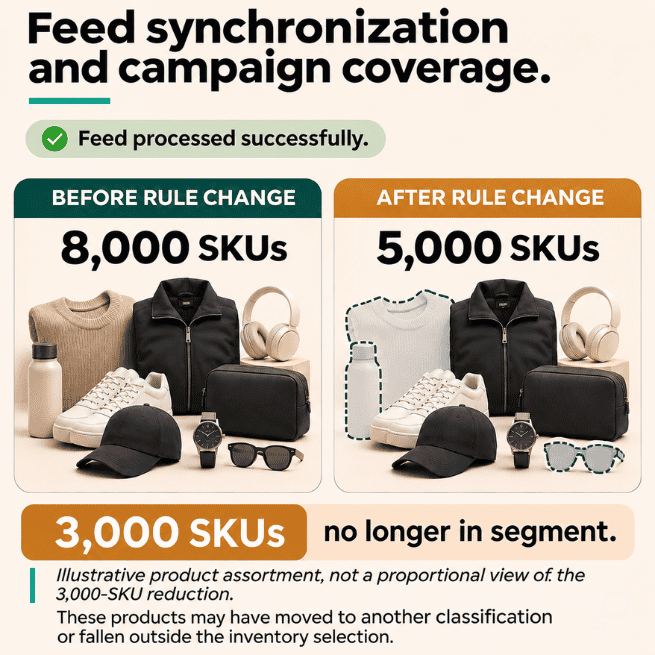
Nothing necessarily gets disapproved. Your feed processes successfully. But you’ve potentially changed which products qualify for an important campaign. Bidding now learns from a different product mix than the one you set your target on.
A standard error report won’t catch that.
Before changing budgets or bidding targets, check what happened to the product data.
Compare the feed output before and after the rule change:
custom_label_0 still contain the expected values?A product can remain approved in Merchant Center while no longer belonging to the campaign segment you built for it.
For Google, review Merchant Center product status and the relevant inventory selection in Google Ads. For Meta, check catalog item status and product-set membership. For Amazon, review listing status, suppressed listings, and inventory records in Seller Central.
In GoDataFeed, inspect the relevant rule outputs and channel feed data to see whether the discrepancy started before submission.
You don’t need to investigate every small fluctuation. Focus on changes that affect important product segments, inventory availability, or campaign eligibility.
Most feed problems become harder to diagnose when nobody knows what changed or when.
A category mapping gets updated. Someone adjusts an availability rule. A new product ID format goes live. Two weeks later, the paid media team notices that a product segment isn’t spending as expected.
Now everyone is trying to reconstruct what happened.
A simple pre- and post-change QA process saves a lot of that work.
Before publishing a significant rule change, check a representative sample of products. Include at least one variant, one low-stock item, and one product from a campaign-critical segment.
Compare the original values with the expected channel output. Then, after processing, verify what reached Merchant Center, Commerce Manager, or the marketplace.
If the change affects campaign classifications, check the corresponding Google Ads listing groups or Meta product sets. New or edited custom labels can take 24 to 48 hours to appear in Google Ads, so don’t read an early gap as a failed rule.
This doesn’t need to become a complicated approval process. It just needs to happen consistently.
GoDataFeed gives you a central place to manage product transformations and channel outputs. Pair that with platform-native diagnostics and campaign reporting so you can see what happened after the data left your feed.
Don’t stop at “feed processed.” Check what landed in the catalog and whether the right products are still available to your campaigns.
You don’t need to audit every feed and every SKU to find synchronization problems.
Pick one important product segment and follow it from your source catalog through GoDataFeed into Google Merchant Center, Meta Commerce Manager, and Seller Central if you sell on Amazon.
Check three things:
If those answers don’t line up, you’ve found a synchronization issue worth investigating, even if every feed reports a successful update.
Effective multi-channel synchronization means each destination receives the right product information and your advertising setup can use it.
Feeds are no longer just for Google Shopping and Meta Ads. Google’s AI performance insights cover shopping-intent queries on AI Mode and AI Overviews, and they point you back to your Merchant Center product data. The product feed spec OpenAI developed with Stripe says feeds are indexed for retrieval and ranking in ChatGPT. On Google, a feed and site mismatch can get a product disapproved, which puts that organic visibility at risk.
A feed running on schedule proves delivery. It doesn’t prove the right products reached the right campaigns
In this post
Carlos Rodriguez is a seasoned content marketer with a background in marketing and advertising. Formerly at the helm of his own marketing agency, he now dedicates his expertise to guiding ecommerce merchants and marketers in mastering multichannel strategies. Outside of work, Carlos is an avid reader and hiker, often found traversing the mountain ranges of Cundinamarca like El Quinini.
Run a free feed audit and see which of your titles are matching queries you'd never choose to bid on.